pyddg standalone Installation
Linux, WSL and MacOS
Create a directory for your project and enter it. Create a virtual environment and activate it.
python3 -m venv venv

source venv/bin/activate
Install the library.
pip install git+https://gitlab.discretization.de/python/pyddg@v0.4.2
Verify the installation.
python3 -c 'import ddg; print("Successfully imported ddg!")'
Exit the virtual environment with
deactivate
Windows
Note
If you prefer to work in a GNU/Linux environment directly on Windows, you can install WSL. You can then follow the instruction for Linux, WSL and MacOS.
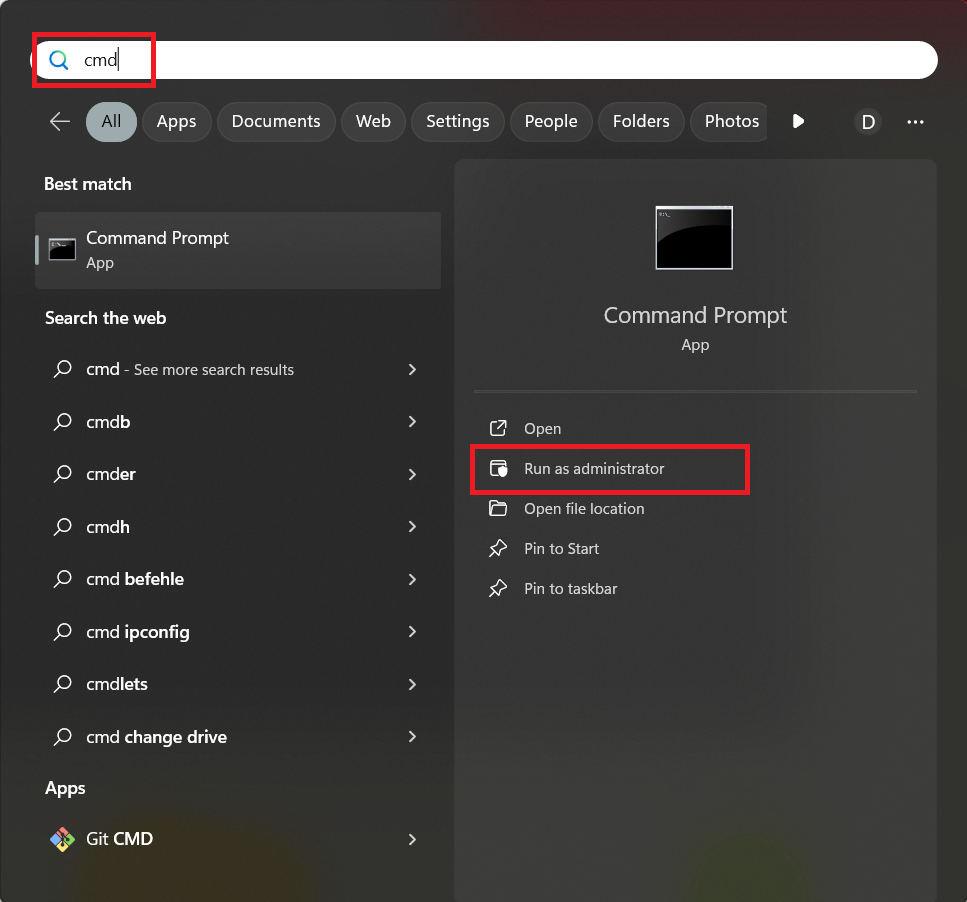
Start an elevated terminal (i.e. “Run as administrator” in cmd.exe)
Make sure that you have Python 3.9 , 3.10 or 3.11 . You can check if any of the following commands return a version between those.
py --version
python3 --version
python --version
If there is an error, you need to install Python. You can choose a version and download it here, or directly download Python 3.10.11 here: Python download
Create a directory for your project
mkdir myproject
and enter it with
cd myproject
Create a virtual environment with
py -m venv .\venv
Remember to replace py by the command working for you, i.e.
py, python3 or python.
Note
If the Actual environment location may have moved due to restrictions, ...
make sure to change (using the command cd)
into the new location stated under Actual location, for example
cd C:\Windows\SysWOW64\myproject
Make sure to rerun the creation of the venv
py -m venv .\venv
Activate the virtual environment by
venv\Scripts\activate
Install the library in the virtual environment with
pip install git+https://gitlab.discretization.de/python/pyddg@v0.4.2
Note
You need to have git installed and may have to manually add it to your PATH. In the guide on how to add git to your PATH you may need to choose “edit the system environment variables” instead of “edit environment variables for your account” to have the rights to edit the PATH.
Verify the installation, again replace py by your python version.
py -c 'import ddg; print("Successfully imported ddg!")'
You can also start python in the venv
py
and start writing your python script by importing ddg
>>> import ddg
To exit python use
>>> exit()
Exit the virtual environment with
deactivate
Updating and switching versions
Choose a different version, e.g. v0.0.0. Inside the virtual environment, run
pip install git+https://gitlab.discretization.de/python/pyddg@v0.0.0
Warning
Updating the version is likely to fail if the virtual environment was moved after installation. This is due to the setup of virtual environments: “[…] environments are inherently non-portable, in the general case.”