pyddg and Blender Installation
Linux and WSL
Warning
Don’t install Blender using other methods unless you know what you are doing.
Install Blender 3.4.1 to a directory of your choice, e.g. ~/blender, with the following command:
sh <(curl https://gitlab.discretization.de/pyddg/pyddg/-/raw/develop/scripts/setup_blender) ~/blender 3 4 1
We don’t support newer versions of Blender right now, though they are likely to work.
Create a directory for your project and enter it. Create a virtual environment with
~/blender/blender-3.4.1/3.4/_python/bin/python3.10 -m venv venv
The following commands need to be run every time you want to work with the library:
export PATH="$HOME/blender/blender-3.4.1:$PATH"
export PYTHONPATH="venv/lib/python3.10/site-packages/"
source venv/bin/activate
Warning
Blender won’t work until you enter the virtual environment and set these environment variables.
Install a specific version of the library with
pip install git+https://gitlab.discretization.de/python/pyddg@v0.1.9
Verify that Blender finds the library with
blender --background --python-expr 'import ddg; print("Successfully imported ddg!")'
Start Blender with
blender
If you now want to learn how to start scripting in Blender continue reading here.
Deactivate the virtual environment with
deactivate
MacOS
Warning
Don’t install Blender using other methods unless you know what you are doing.
Install Blender 3.4.1 for Apple Silicon to Applications with the following command. If you’re running Intel, pass x64 instead of arm64. Note that it requires root privileges!
sh <(curl https://gitlab.discretization.de/pyddg/pyddg/-/raw/develop/scripts/setup_blender_macos) arm64 3 4 1
Create a directory for your project and enter it. Create a virtual environment with
/Applications/Blender-3.4.1-pyddg.app/Contents/Resources/3.4/_python/bin/python3.10 -m venv venv
The following commands need to be run every time you want to work with the library:
export PATH="/Applications/Blender-3.4.1-pyddg.app/Contents/MacOS/:$PATH"
export PYTHONPATH="venv/lib/python3.10/site-packages/"
source venv/bin/activate
Warning
Blender won’t work until you enter the virtual environment and set these environment variables.
Install the library with
pip install git+https://gitlab.discretization.de/python/pyddg@v0.1.9
Verify that Blender finds the library with
Blender --background --python-expr 'import ddg; print("Successfully imported ddg!")'
Start Blender with
Blender
Remember that you have to start it inside the virtual environment and that you have exported
the PATH and PYTHONPATH before.
If you now want to learn how to start scripting in Blender continue reading here.
Deactivate the virtual environment with
deactivate
Windows
Note
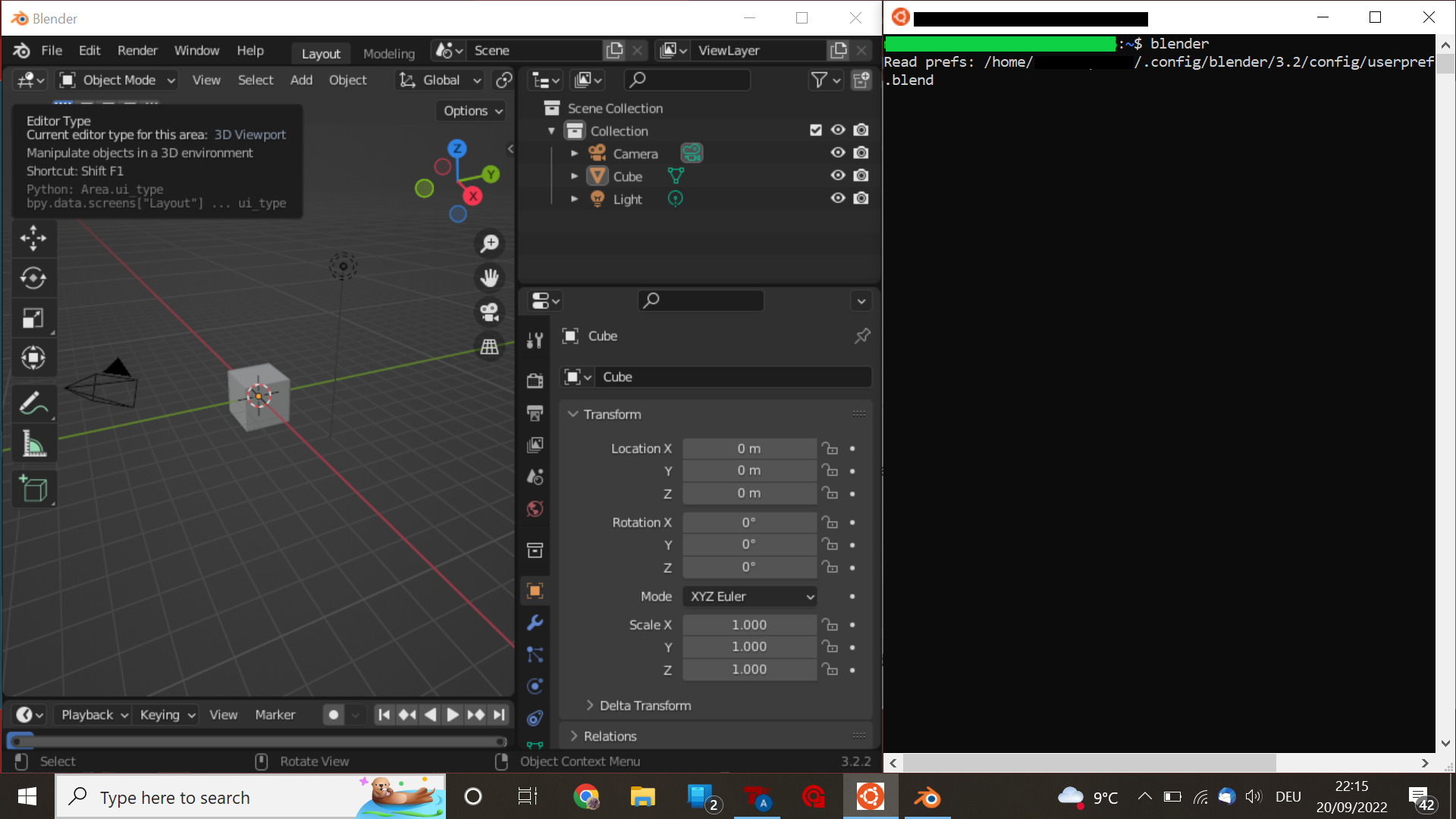
If you prefer to work in a GNU/Linux environment directly on Windows, you can install WSL. You can then follow the instruction for Linux and WSL. For instructions on how to use the Blender GUI on WSL, see Setting up display for interactive Blender on WSL
Install Blender 3.4 using the official installer. You can install it to a custom directory, but from now on we will assume the default directory.
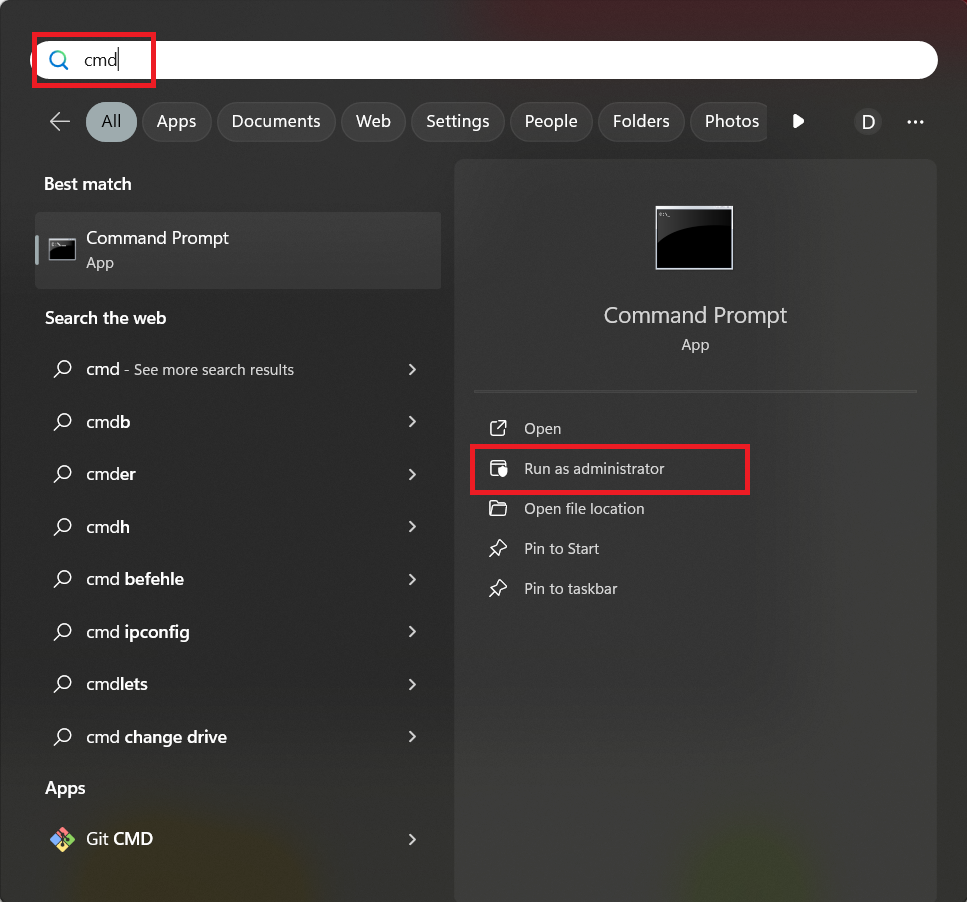
Using an elevated terminal (i.e. “Run as administrator” in cmd.exe)
Install a specific version of the library inside Blender with
"C:\Program Files\Blender Foundation\Blender 3.4\3.4\python\bin\python.exe" -m ^
    ensurepip
"C:\Program Files\Blender Foundation\Blender 3.4\3.4\python\bin\python.exe" -m ^
    pip install --target "C:\Program Files\Blender Foundation\Blender 3.4\3.4\python\lib\site-packages" ^
    git+https://gitlab.discretization.de/python/pyddg@v0.1.9
The --target flag ensures that the library gets installed into Blender’s Python.
Note
You need to have git installed and may have to manually add it to your PATH. In the guide on how to add git to your PATH you may need to choose “edit the system environment variables” instead of “edit environment variables for your account” to have the rights to edit the PATH.
Warning
This modifies your Blender installation. Updating or installing another Blender version may result in problems.
Verify that Blender finds the library with
"C:\Program Files\Blender Foundation\Blender 3.4\blender.exe" --background --python-expr "import ddg; print('Successfully imported ddg!')"
You can start Blender with
"C:\Program Files\Blender Foundation\Blender 3.4\blender.exe"
or by double-clicking on the Blender icon on your Desktop.
If you now want to learn how to start scripting in Blender continue reading here.
Updating and switching versions
Choose a different version, e.g. v0.0.0. Inside the virtual environment, run
pip install git+https://gitlab.discretization.de/python/pyddg@v0.0.0
If you are on Windows, you need to upgrade your Blender’s pyddg.
"C:\Program Files\Blender Foundation\Blender 3.4\3.4\python\bin\python.exe" -m ^
pip install --target "C:\Program Files\Blender Foundation\Blender 3.4\3.4\python\lib\site-packages" git+https://gitlab.discretization.de/python/pyddg@v0.0.0
Warning
Updating the version is likely to fail if the library was moved after installation. This is due to the setup of virtual environments: “[…] environments are inherently non-portable, in the general case.”
Setting up display for interactive Blender on WSL
While WSL supports Linux GUI apps on Windows 11, the same cannot be said for Windows 10. In this case, you need to set up an X Server to display graphical outputs of interactive Blender.
VcXsrv is an open-source tool that can set up a Windows X Server. After installing VcXsrv, an X Server can be set up by running xlaunch.exe.
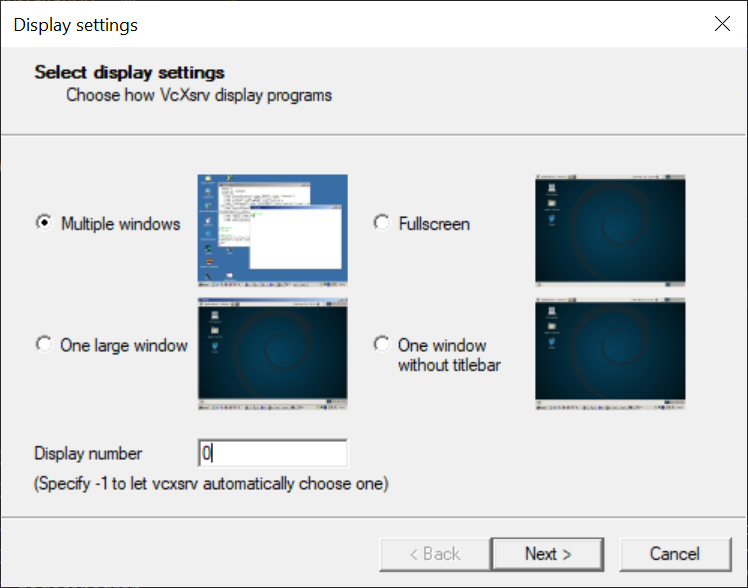
In Display settings, choose “Multiple windows”, Display number 0.
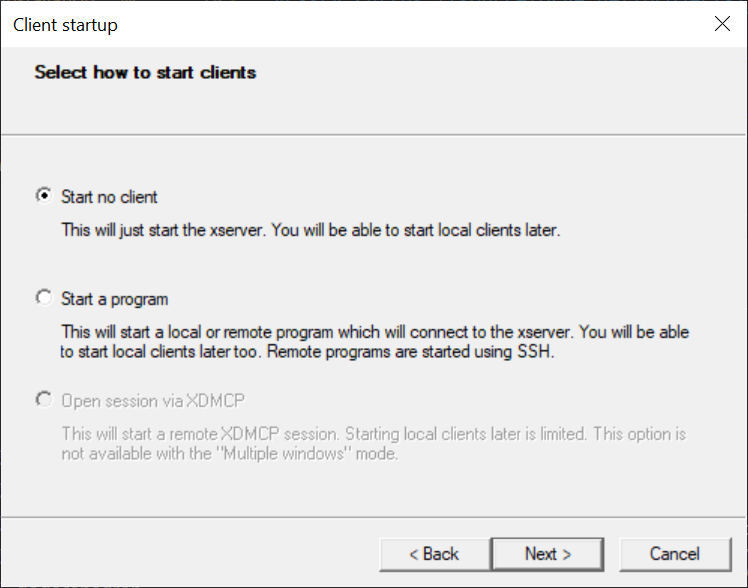
Choose “Start no client” for client startup option.
In Extra settings, tick “Disable access control” to enable access from clients in WSL.
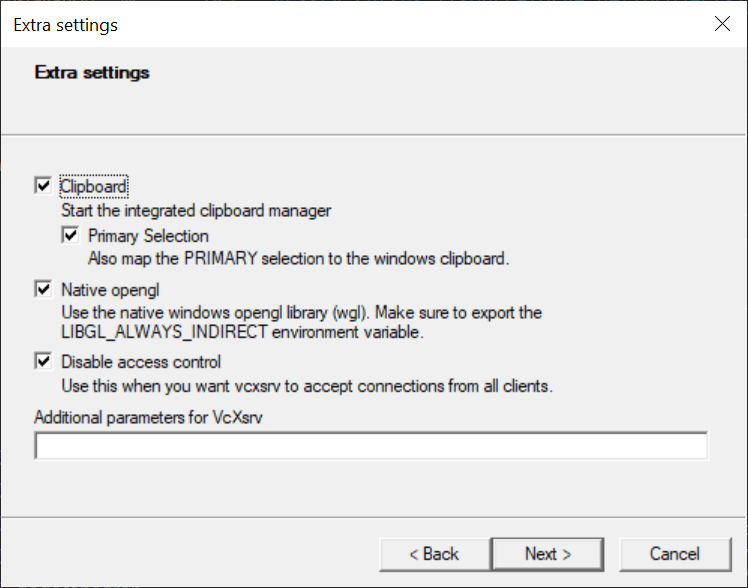
Finally, do not forget to save the configuration and finish. Next time you need to start an X Server, start the saved .xlaunch file to avoid setting it up all over again.
You will know that VcXsrv is running when the XLaunch icon appears in the taskbar.

The next thing to do is to set the environment variable DISPLAY for our WSL instance. This can be done dynamically with:
export DISPLAY="`sed -n 's/nameserver //p' /etc/resolv.conf`:0"
If you already added Blender to the $PATH in WSL, simply running blender will launch interactive Blender.