Blender Keyframes
Animating an object in Blender comes down to setting keyframes to the properties of that object. This can be done using Blenders GUI, see Blender documentation This guide explains how to do this using functions of our library. In both cases it can be helpful to use the Timeline in Blender’s GUI to see and keep track of your keyframes.
Setting a Keyframe
The function set_keyframe() can be used to
set a keyframe to a property of an object.
In this example the location of a tetrahedron is animated:
import ddg
from ddg.halfedge import tetrahedron
from ddg.blender.animation import set_keyframe

bobj = ddg.blender.convert(tetrahedron(), "tetrahedron")
fps = 24
set_keyframe(bobj, 0 * fps, "location", (0, 0, 0))
set_keyframe(bobj, 1 * fps, "location", (0, 0, 1))
set_keyframe(bobj, 2 * fps, "location", (0, 0, 0))
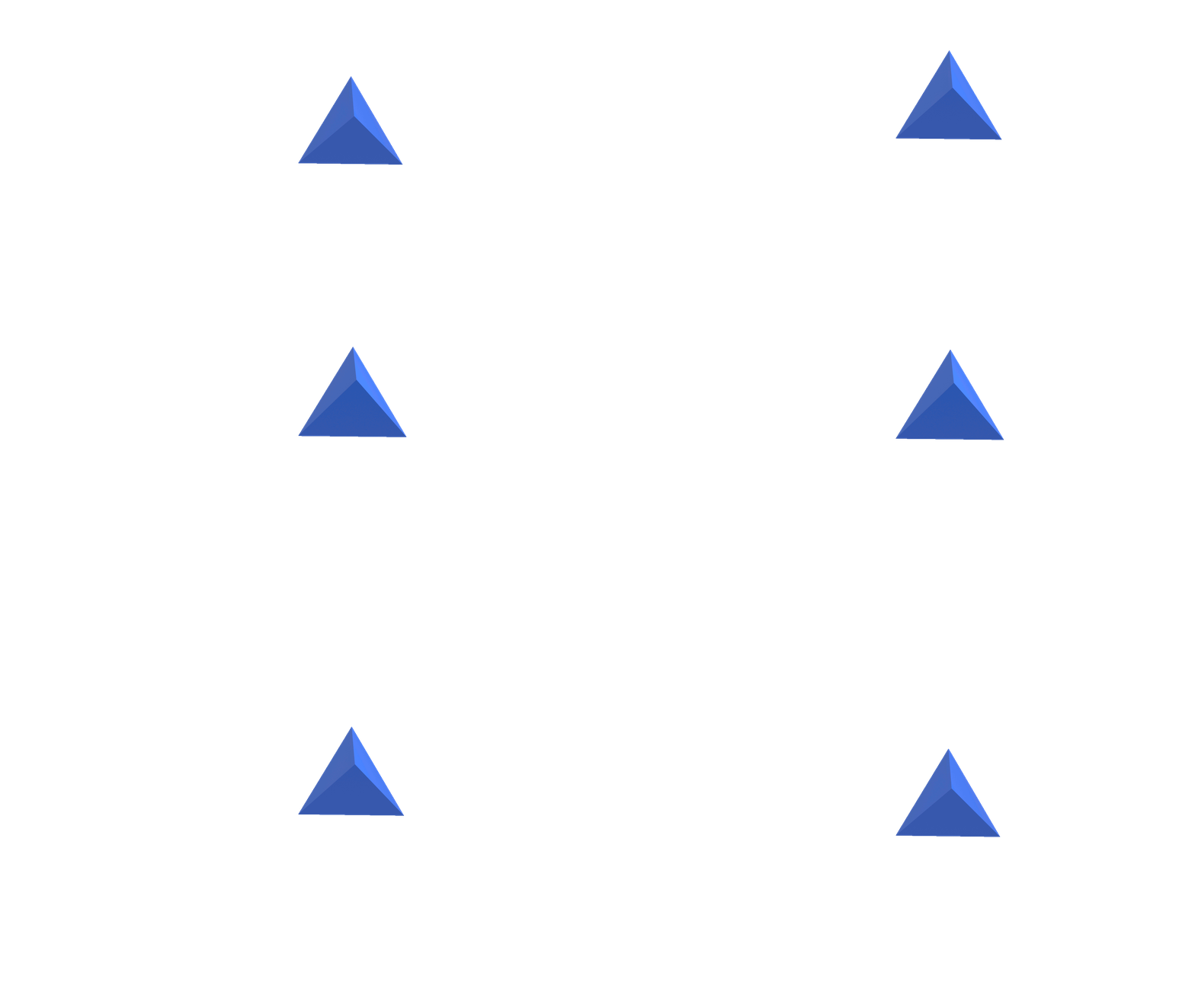
Additionaly, one can add animation to the rotation property of the tetrahedron in a similar way:
import numpy as np

set_keyframe(bobj, 0, "rotation_euler", (0, 0, 0))
set_keyframe(bobj, 2 * fps, "rotation_euler", (0, 0, 2 * np.pi))
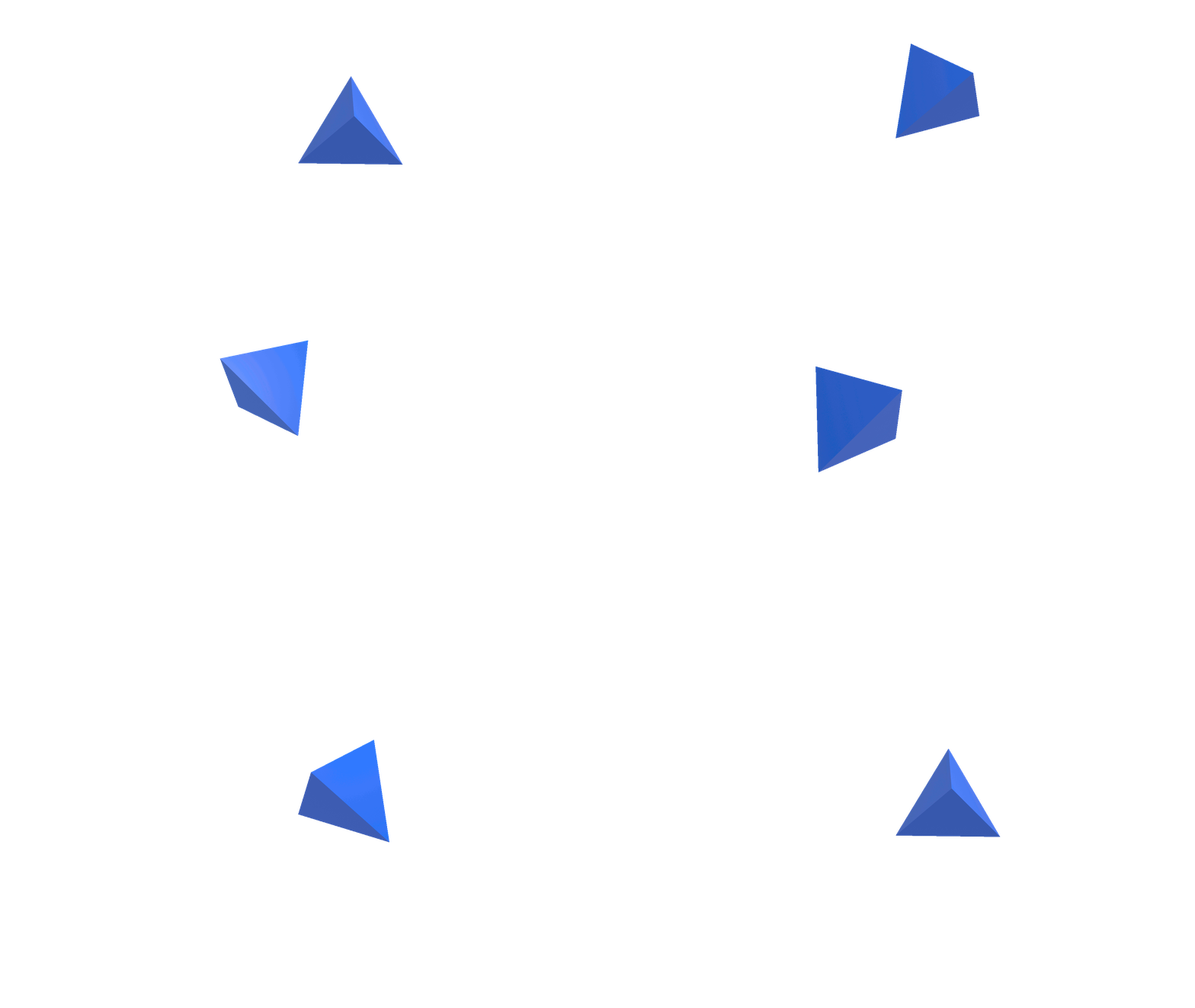
Clearing the Animation Data
To clear the animation data that was set on the properties of an object, one can run:
from ddg.blender.animation import clear_animation_data

clear_animation_data(bobj)
Setting Multiple Keyframes at the Same Time
When the animation becomes more complex one might want to set the values of a property in multiple frames at the same time. Running this code block would have the same effect as the two first code blocks:
from ddg.blender.animation import animate_property

animate_property(
    bobj, "location", [i * fps for i in range(3)], [(0, 0, i % 2) for i in range(3)]
)
animate_property(
    bobj,
    "rotation_euler",
    [2 * i * fps for i in range(2)],
    [(0, 0, 2 * np.pi * (i % 2)) for i in range(2)],
)
For even more complex animations, one can set multiple frames to multiple properties. This code block sets the animation for the location and the scaling at the same time:
from ddg.blender.animation import animate_properties

clear_animation_data(bobj)
animate_properties(
    bobj,
    [i * fps for i in range(3)],
    {
        "location": [(0, 0, i % 2) for i in range(3)],
        "scale": [(1 + (i % 2), 1, 1) for i in range(3)],
    },
)
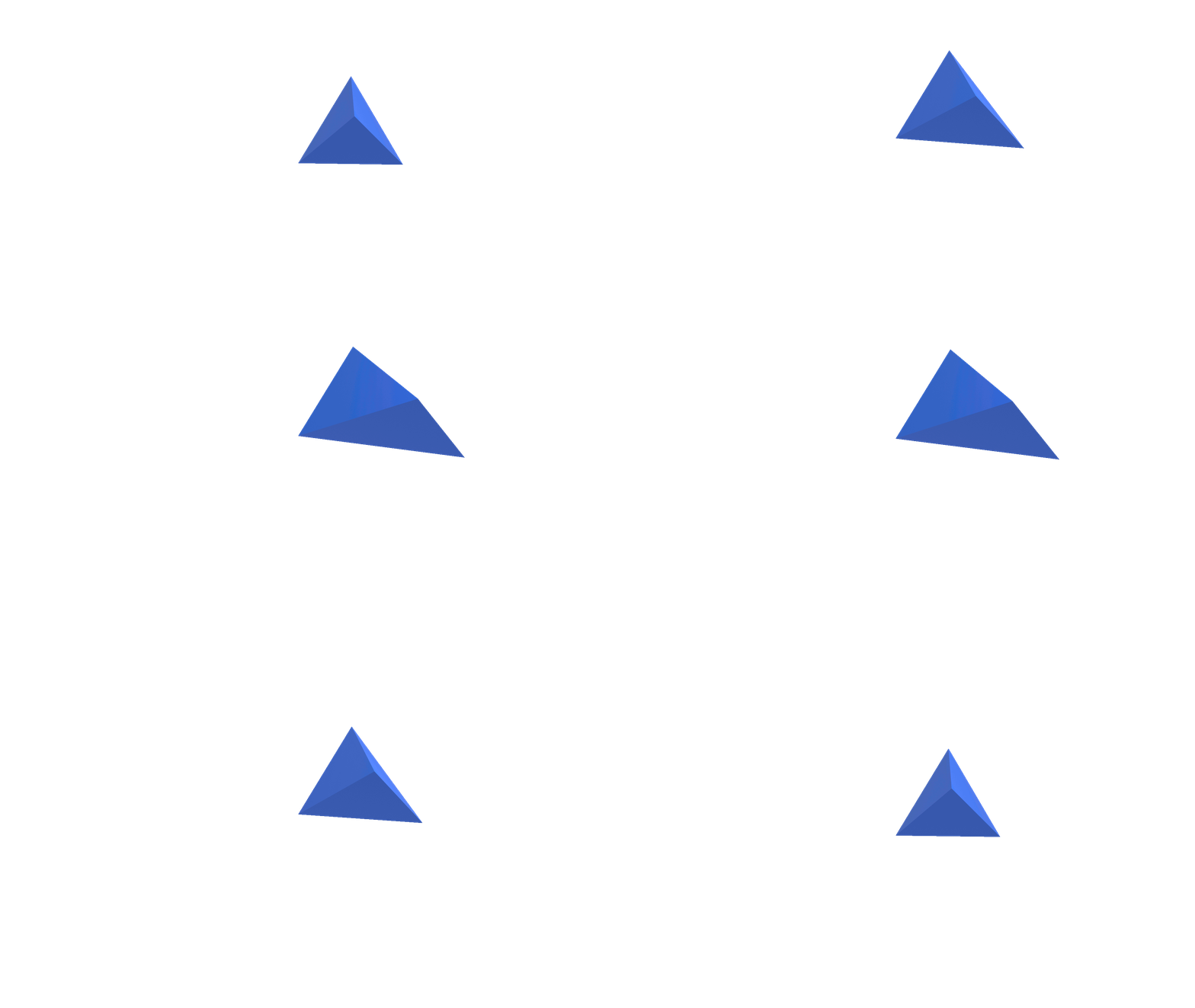
Making objects appear and disappear
In long animation sequences involving multiple objects, one might want to make some objects only appear at a certain time.
This is possible using transparent materials together with animate_opacity():
from ddg.blender.material import set_transparency, set_material
from ddg.blender.animation import animate_opacity

material = bobj.data.materials[0]
set_transparency(material)
animate_opacity(material, *[fps * i * 2 for i in range(4)])