Animating ddg Objects
This guide explains how to animate ddg objects (and their visualizations in Blender) by introducing parameters that can be accessed and changed via Blender’s GUI. Animations can easily be created by adding keyframes to the parameters.
Warning
Modifying objects with Blender properties is still work in progress. If you find unexpected behaviour, try restarting Blender and/or write a mail to our Support.
Adding Parameters with a Callback Function
The most central tool for creating animations is the function
add_props_with_callback().
You pass the labels and initial values of the parameters as well as a
callback function in the function call.
The callback function will be executed each time one of the parameters changes its value.
The parameters, called Blender properties, can now be accessed via Blender’s GUI.
Here is a basic example:
from ddg.visualization.blender import props


def print_props(a, b, c, s):
    print(f"{a, b, c, s = }")


props.add_props_with_callback(
    print_props,
    ("a", "b", "c", "s"),  # labels for the properties
    -1.0,  # initial parameters
    1.0,
    0.5,
    -1,
)
Note
The labels “a”, “b”, “c” and “s” of the parameters can be chosen freely. The callback function will be called with the parameters as arguments in given order.
The type of the initial parameters determines the type
of the parameters, e.g. “0” will result in int, “0.0” in float.
The example creates the properties a, b, c and s.
In Blender’s 3D Viewport you can click on the little arrow to the right side
of the coordinate system to open the sidebar. Alternatively you can also press ‘n’.
In addition to the Item, Tool and View tabs, you now also find a DDG tab that
stores the Blender properties.
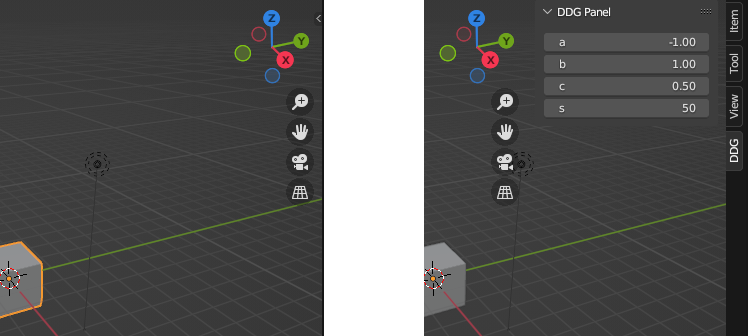
If we adjust any of them,
the callback function print_props will be executed, and
will print the properties values to the console.
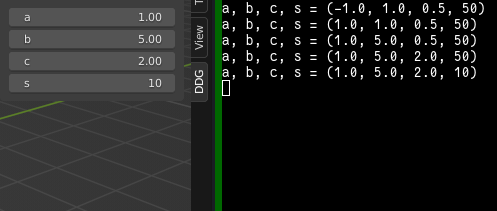
Note
The properties need to reside on some object inside of Blender.
We store them on the scene, which can be obtained with
bpy.context.scene. This is important to know if you want to
access these properties via the API (e.g.
bpy.context.scene.a) for example when animating them.
Parameter dependent ddg Objects
For more interesting examples involving geometric objects,
we can replace print_props by a function that creates Blender objects.
Note
This is the most rudimentary way and does not involve any caching. There are more sophisticated ways of creating callback functions, using a caching mechanism, explained in the next section. This section will help to understand whats going on, especially if you are just starting to work with animations.
The following function creates and visualizes a quadric depending on parameters.
import bpy
import numpy as np

import ddg
from ddg.visualization.blender import props
def create_quadric(a, b, c, s):
    """
    Creates a quadric from the given parameters.
    """
    q = ddg.geometry.quadrics.Quadric(np.diag([a, b, c, s]))
    return q


def visualize_quadric(a, b, c, s):
    """
    Converts a quadric to a Blender object
    and links this to bpy.context.scene (per default).
    Clears all meshes beforehand.
    """
    ddg.visualization.blender.mesh.clear()
    q = create_quadric(a, b, c, s)
    q_bobj = ddg.to_blender_object_helper(q, sampling=[0.1, 50, "c"], name="Quadric")
    return [q_bobj]
We add the visualization function as a callback for the Blender properties a, b, c and s.
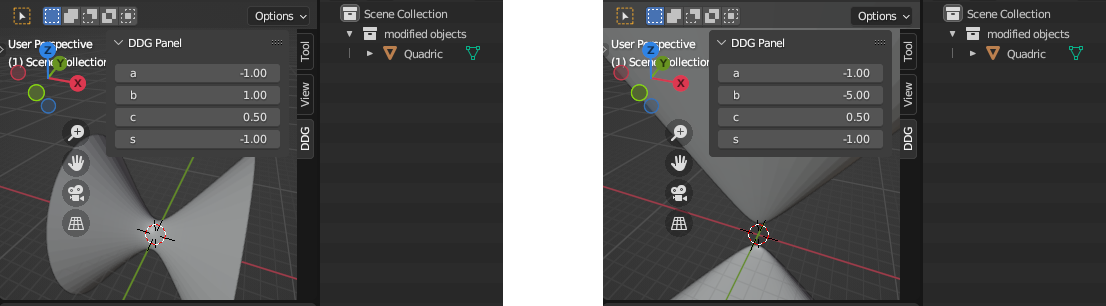
Changing the parameters then will change the form and the type of the visualized quadric.
props.add_props_with_callback(
    visualize_quadric, ("a", "b", "c", "s"), -1.0, 1.0, 0.5, -1.0
)
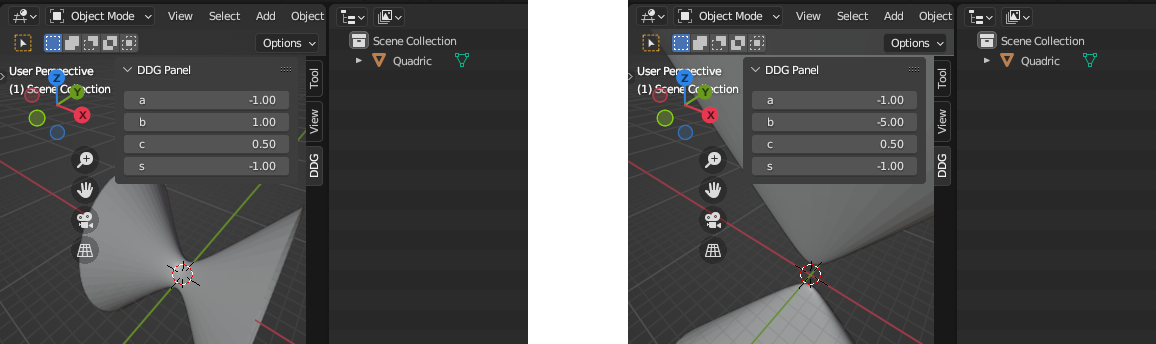
Warning
Be aware, that when executing the script, i.e. by pressing ‘Alt + P’, no output is expected.
Only when changing a parameter the visualize_quadric function is called and executed.
Warning
If there is no activity, even when changing the parameters, check the console you have started Blender with. Error messages will appear there without being shown in Blender.
Caching Manipulated Objects
There are two utility functions for caching manipulated objects,
hide_callback() and
overwrite_callback().
For both caching mechanisms we need to adapt the visualization function to return a
sequence of unlinked Blender objects.
This means that we need to pass the keyword link=False to to_blender_object()
for each object.
def create_quadric(a, b, c, s):
    """
    Creates a quadric from the given parameters.
    """
    q = ddg.geometry.quadrics.Quadric(np.diag([a, b, c, s]))
    return q


def visualize_quadric(a, b, c, s):
    """
    Converts a quadric to a Blender object
    and does not link it to any collection.
    No mesh clearing required.
    """
    q = create_quadric(a, b, c, s)
    q_bobj = ddg.to_blender_object_helper(
        q, sampling=[0.1, 50, "c"], name="Quadric", link=False
    )
    return [q_bobj]
The hide_callback() and the
overwrite_callback() function expect a name of a collection and a function
returning the unlinked Blender objects. Their specific usage is explained below.
Warning
The functions hide_callback() and
overwrite_callback() use custom Blender collections to store the objects.
It is not compatible with user defined collections. In other words, you can not pass
a collection argument to to_blender_object().
Hide Callback
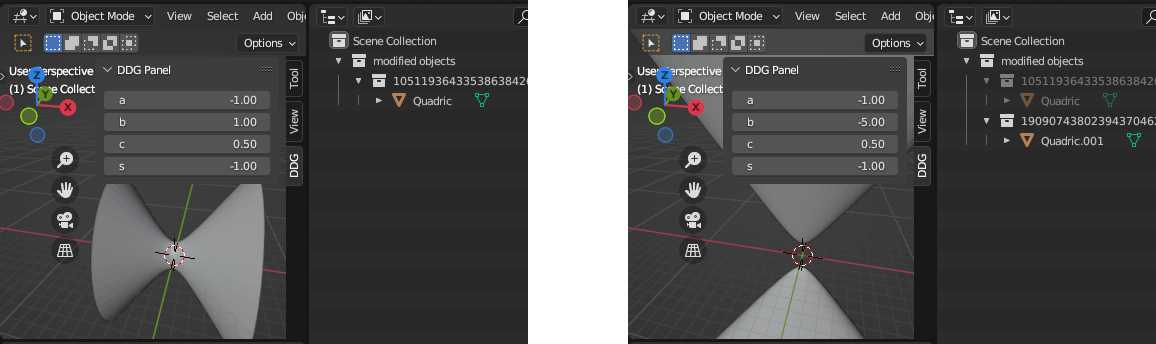
The function hide_callback() creates a Blender collection
with passed name. For each distinct set of parameters a child collection is appended
(on demand).
If a parameter is changed, the previous collection, and therefore its objects, are hidden. Then either a new child collection
is created (for a new set of parameters) or a previously created child collection is un-hidden
(if the set of parameters has been used before).
callback = props.hide_callback("modified objects", visualize_quadric)
props.add_props_with_callback(
    callback,
    ("a", "b", "c"),
    -1.0,
    1.0,
    0.5,
    s=-1.0,
)
Warning
For smaller scripts using the same values of parameters (e.g. animations) hiding and un-hiding is a very fast and cheap option. For large scripts this method results in lots of objects which might be difficult to be handled by Blender. Blender might have difficulties handling many objects when rendering.
Overwrite Callback
If all objects to visualize will have mesh data (i.e. no curves, lights and cameras, no 1D nets for example coming from
lines, conics, etc), it is also possible to overwrite the object’s data in-place.
This can be done using the overwrite_callback(), which also caches results.
callback = props.overwrite_callback("modified objects", visualize_quadric)
props.add_props_with_callback(
    callback,
    ("a", "b", "c"),
    -1.0,
    1.0,
    0.5,
    s=-1.0,
)
Clear Callback
There also exists a function clear_callback() that does not
cache any data. It can be used in a similar way as the functions above.
Finer Control over Properties
If you want to set the description, minimum or maximum value of a property and more, you’ll have to define the properties yourself:
from functools import partial

props.add_props_with_callback_from_constructors(
    callback,
    {
        "a": partial(bpy.props.FloatProperty, default=-1.0, min=-1.0, max=5.0),
        "b": partial(bpy.props.FloatProperty, default=1.0),
        "c": partial(bpy.props.FloatProperty, default=0.5),
    },
    {"s": partial(bpy.props.IntProperty, default=-1)},
)
Consult the Blender documentation for all the options. The callback code remains the same.
Saving and Reloading .blend Files
Since closing Blender loses all Python state, the callback will no longer exist after saving and reloading a .blend file. To fix this, run the script again. Afterwards the callback will work as expected.
Creating an Animation
Like any Blender properties, DDG properties can be keyframed and interpolated. In particular, the library’s tools for keyframes can be applied, with the slight catch that we store the interactive properties on Blender’s scene, as mentioned above.
To animate the parameter a we already added in the example above, we could do:
from ddg.visualization.blender import animation

SCENE = bpy.context.scene
FPS = 24
animation.set_keyframe(SCENE, 0 * FPS, "a", -1.0)
animation.set_keyframe(SCENE, 3 * FPS, "a", 1.0)
For a more detailed guide on setting and editing keyframes, see Blender Keyframes.
When playing animations multiple times in Blender, the functions
hide_callback()
or overwrite_callback() are
recommended to cache the results.
When creating (and rendering) an animation from script, i.e. only playing it once,
the functions clear_callback()
or overwrite_callback() are
recommended.
To find out more about rendering animations check out our Rendering guide.